Onboarding for Team Leads
Step 1: Set Up Your FUB Account
1. Create account and log in
Use this link to create a new account: https://app.followupboss.com/signup/v2?p=streeteasy-experts
Log in to your account on FUB. When you first log in, check your email for a verification link from FUB and click it to access your account.
2. Configure your account settings
In My Settings, connect your email so FUB can sync your client emails.
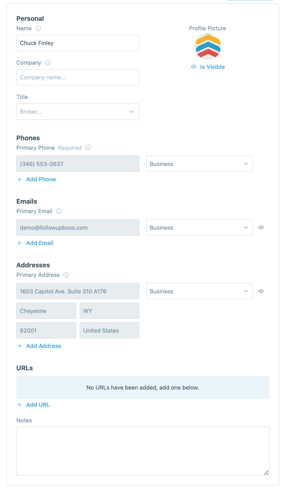
Then view and edit your vCard to easily send your contact information via text.
Lastly, manage your notification settings.
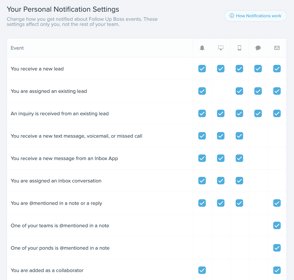
π‘ You'll also want to update your notification settings in your phone's system setting.
3. Update your company info
1. Click your name/avatar in the top-right corner of the screen
2. Select Admin from the dropdown menu
3. Navigate to the Settings section in the left sidebar
2. Select Admin from the dropdown menu
3. Navigate to the Settings section in the left sidebar
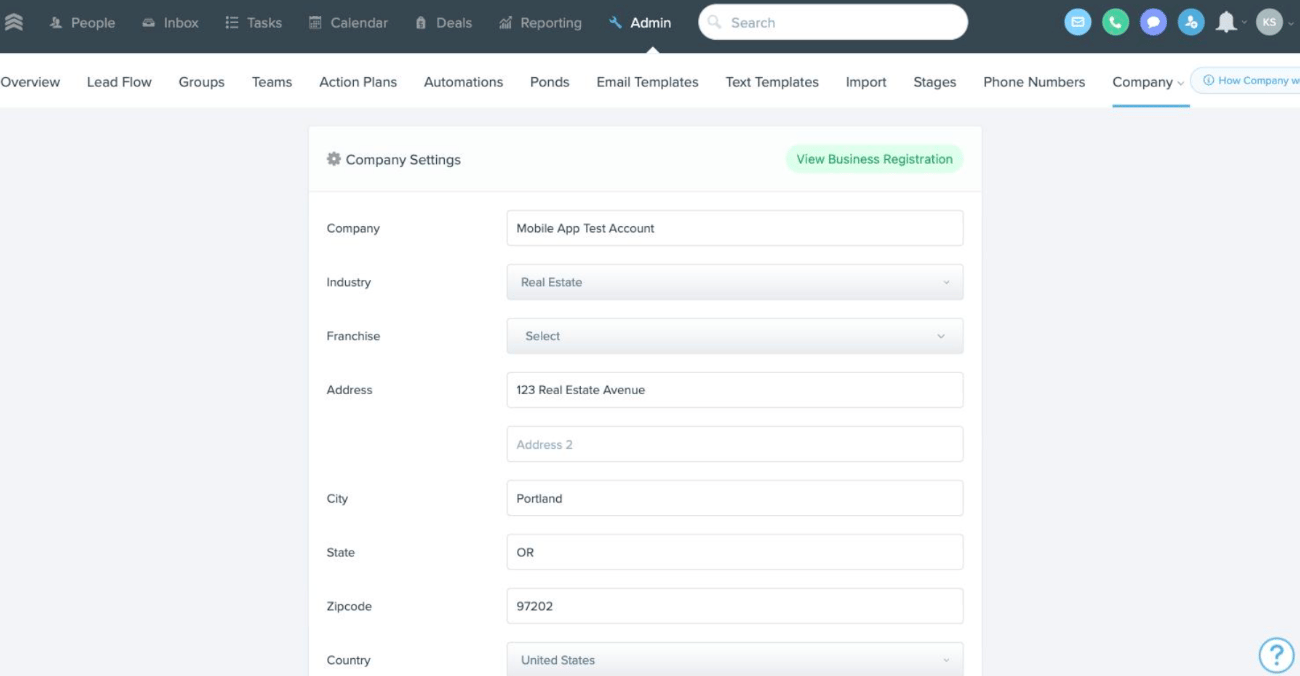
- Add your company name, address, and contact info β this appears at the bottom of all marketing emails
- Set up your company phone number and fallback number β the company number is a shared team line used for routing calls and texts; the fallback ensures calls never drop into a void during an outage
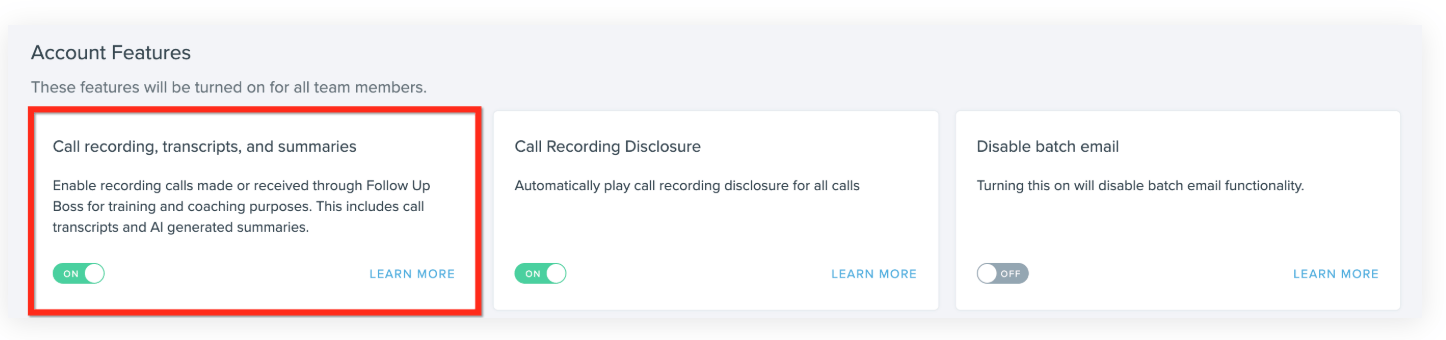
- Enable Call Recording and Legal Disclosure β call recording transcribes and summarizes every call using AI, saving agents from manual note-taking
- Configure Office Hours β controls when your Team Inbox numbers can receive calls
- Add Business Insights goals and an email to receive your Weekly Business Insights Email, which tracks your team's production progress
π‘ Configure it once, and every agent on your account starts with the same consistent, ready-to-use setup.
4. Set up your business registration
Business registration is a requirement of our partner Twilio to ensure you meet cell phone carrier requirements, and must be completed before you can begin using the FUB Phone. Without it, you wonβt be able to use the FUB Phone or FUBβs full AI features.
- Confirm your website has opt-in language on every contact form where a phone number is collected
-
Add a privacy policy to your website that explicitly states data will not be sold or shared with third parties for marketing purposes. Your Privacy Policy also needs to specify several Terms and Conditions. The text below can be added directly to your Privacy Policy to meet these requirements:Terms and Conditions1. We use SMS to confirm appointments, send reminders, and notify clients of schedule updates or important changes.2. You can cancel the SMS service at any time. Just text "STOP". After you send the SMS message "STOP" to us, we will send you an SMS message to confirm that you have been unsubscribed. After this, you will no longer receive SMS messages from us. If you want to join again, just sign up as you did the first time, and we will start sending SMS messages to you again.3. If you are experiencing issues with the messaging program you can reply with the keyword βHELPβ for more assistance, or you can get help directly at [CONTACT EMAIL ADDRESS].4. Carriers are not liable for delayed or undelivered messages.5. As always, message and data rates may apply for any messages sent to you from us and to us from you. Message frequency may vary. If you have any questions about your text plan or data plan, it is best to contact your wireless provider.6. If you have any questions regarding privacy, please read our privacy policy: [LINK TO PRIVACY POLICY]
- Obtain your EIN (Employer Identification Number). Your business legal name, address, and EIN must all match exactly across your registration form and website
- Complete the Business Registration form with your business details, website URL, and website compliance confirmations
- Monitor the status of your Business Registration. This may take a few days to be approved.
π‘ Don't change your website or business name while the registration is under review β the carrier will verify that your EIN, business name, and website all match.
Why Business Registration Matters
How to Register Your Phone Numbers
Business Registration Status
Business Registration: Rejections and Solutions
5. Invite your team
Before your team members can log in, receive leads, or use any features on the platform, you'll need to invite them to FUB.
Send an invite to your team members by selecting Admin > Team > + Add Team Members. Have a large team? Check out Importing Team Members.
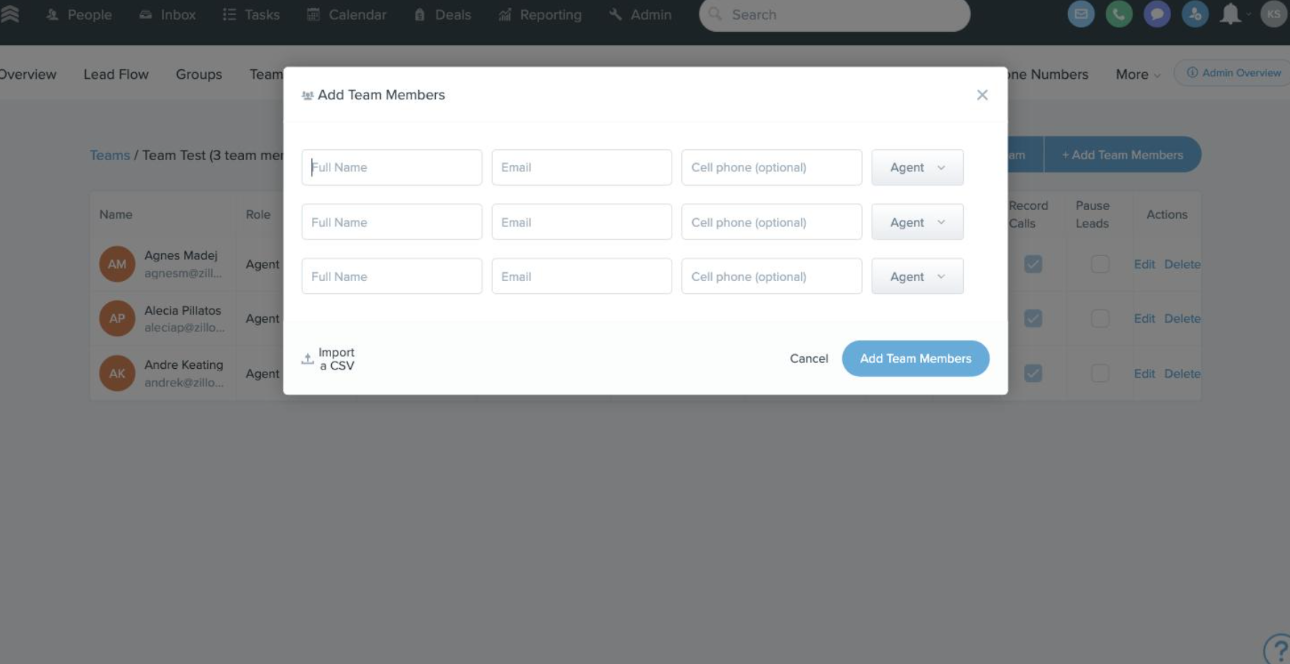
Confirm each agent receives their invitation email. Once a user is invited to your team, they receive an email where they can set up a password to access your team's Follow Up Boss account.
Monitor your Team Page to track who has accepted their invitation and resend for anybody still showing as βInvite Sentβ
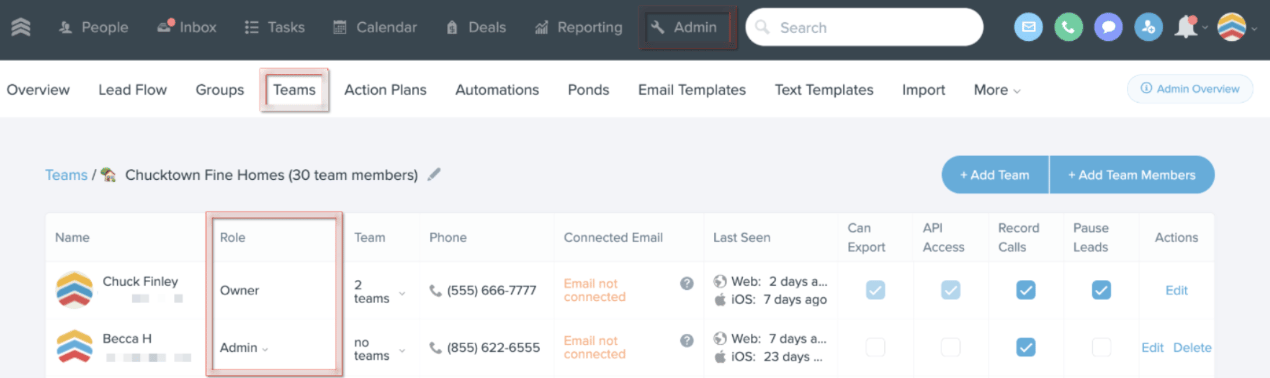
On the Teams page, assign the right access level for each agent β Owner, Admin, or Agent/Lender; this controls what each person can see and do in FUB.
6. Connect your non-Experts lead sources
Bring your existing contacts into FUB, then set up Lead Flow so every new lead is automatically assigned and actioned as soon as it comes in.
- Identify where your existing leads are coming from and get them ready to import into FUB.
- Import your contacts into FUB - be sure to follow our best practices to make sure your import goes smoothly
Set up Lead Flow for new incoming leads:
Connect your lead sources β confirm FUB accepts leads from your source, then follow the setup instructions to connect it
Configure agent assignment β for each lead source, set which agent or group of agents incoming leads should be assigned to automatically
Attach an automation β set the Automation 2.0 that fires automatically for each new lead from that source so follow-up starts the moment a lead arrives
Configure agent assignment β for each lead source, set which agent or group of agents incoming leads should be assigned to automatically
Attach an automation β set the Automation 2.0 that fires automatically for each new lead from that source so follow-up starts the moment a lead arrives
PAUSE HERE
Business registration may take a few days to be approved. After submitting, please wait for approval before moving on to Step 7 below.
For any questions, contact FUB support at support@followupboss.com or (855) 622-5311.
7. Confirm business registration is approved
Confirm your Business Registration is approved β Spam Label Protection activates automatically once registration is complete; no separate setup needed.
Verify your business name appears under Spam Label Calling Protection β This confirms your calling numbers are actively registered with carriers.
π‘Note: TCPA compliance is separate β spam labels from non-compliant calling practices aren't covered by this feature; consult a TCPA lawyer for calling compliance guidance
Learn More: Spam Label Calling Protection
8. Set up your FUB phone number
Each agent on a FUB account gets their own dedicated FUB phone number - a dedicated business line assigned to each agent, used for both calling and texting within FUB.
- Incoming calls to your FUB number route to you based on your settings
- You initiate outbound calls from the FUB desktop or mobile app. The lead sees your FUB number as the caller ID, keeping your personal cell private
Set it up:
- Find your dedicated FUB number in your Settingsβ this is your professional business line for all calls and texts through FUB
- Configure how incoming calls reach you β forward to your mobile, ring both lines, or send straight to FUB voicemail
- Set your Outbound Number and Calling Method β choose which FUB number (personal or inbox) is used for outgoing calls and select the calling method that works best for your workflow. We recommend using your FUB phone number.
- Record a custom voicemail greeting β leads hear your name and business, not a generic robot message
- Enable Caller ID on your mobile app β so incoming FUB calls are clearly labeled on your phone.
- Place a test call β confirm calls ring, route, and record correctly before your first real lead comes in. Note: Use a number that is not your personal phone number to test.
9. Enable call recording and AI summaries
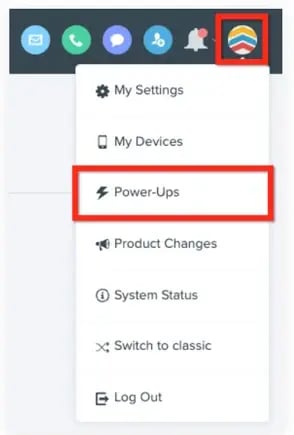
Call Recording and AI Smart Summaries (AKA your Power-Ups) turn every conversation into an automatic action plan, so nothing important gets lost.
- Enable the Call Recording + AI Summaries & Transcripts Power-Up β applies to all FUB calls automatically once active
- Introduce your team to recordings and AI summaries β show them where recordings live and how to act on AI-suggested tasks after a call
-
Add call summary review to your coaching routine β review agent summaries regularly to spot follow-up gaps and coaching opportunities

ACTION REQUIRED: Let StreetEasy know you're set up
Congrats! You've finished Onboarding Step 1 π
Let the StreetEasy Team know once your team has finished setting up their new FUB accounts. You're ready to link with StreetEasy (Onboarding Step 2)!
Reach out to StreetEasy-FUB@StreetEasy.com
Let the StreetEasy Team know once your entire team has finished setting up their new FUB accounts. You're ready to link with StreetEasy (Onboarding Step 2)!
Reach out to StreetEasy-FUB@StreetEasy.com
Questions? Reach out to us at StreetEasy-FUB@StreetEasy.com