1. Link your StreetEasy and FUB accounts
Once you’ve set up your new Follow Up Boss account, let StreetEasy know that your setup is complete. The option to link your accounts will appear in StreetEasy within two business days. Once it appears, follow the steps below to connect your StreetEasy and FUB accounts. Your Team Members will need to link their accounts separately.
1. Open the Agent Tools app or navigate to Agent Tools on the web.
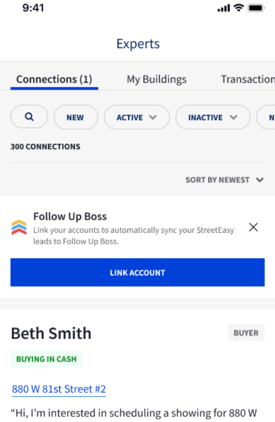
2. Open the Connections tab and select the Follow Up Boss → Link Account prompt.
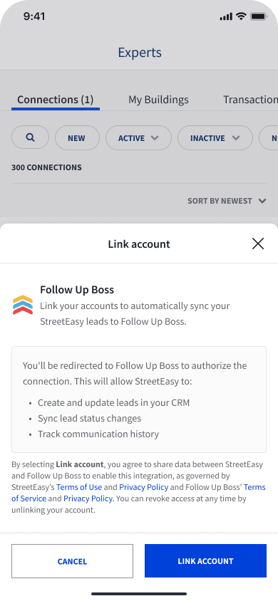
3. Select LINK ACCOUNT again in the confirmation window.
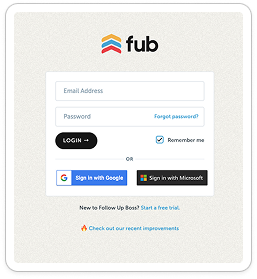
4. Sign in to your Follow Up Boss account. Review the requested permissions and select Grant Access.
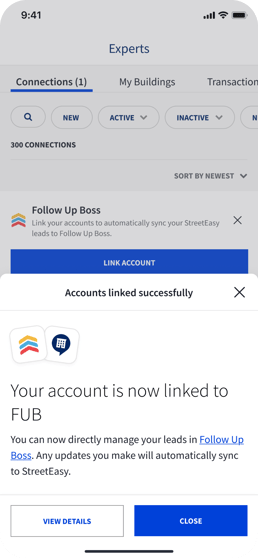
5. Confirm that you see Accounts Linked.
6. As connections come through, verify the integration is working - confirm stages and details are syncing correctly as changes are made on StreetEasy or FUB.
If you have difficulty linking your account, reach out to StreetEasy-FUB@streeteasy.com
2. Open the Connections tab and select the Follow Up Boss → Link Account prompt.
3. Select LINK ACCOUNT again in the confirmation window.
4. Sign in to your Follow Up Boss account. Review the requested permissions and select Grant Access.
5. Confirm that you see Accounts Linked.
6. As connections come through, verify the integration is working - confirm stages and details are syncing correctly as changes are made on StreetEasy or FUB.
If you have difficulty linking your account, reach out to StreetEasy-FUB@streeteasy.com