
StreetEasy® is constantly working to improve your experience as an Expert and provide the tools you need to deliver results. As such, we built the Experts Performance Dashboard to help you easily track your success in the program and identify opportunities to grow — all in one place. With actionable insights to keep you focused, you can spend less time tracking down your performance data and more time closing deals.
Here’s a breakdown of what’s in the Experts Performance Dashboard and how it can help you track and maximize your success.
What’s in the Experts Performance Dashboard
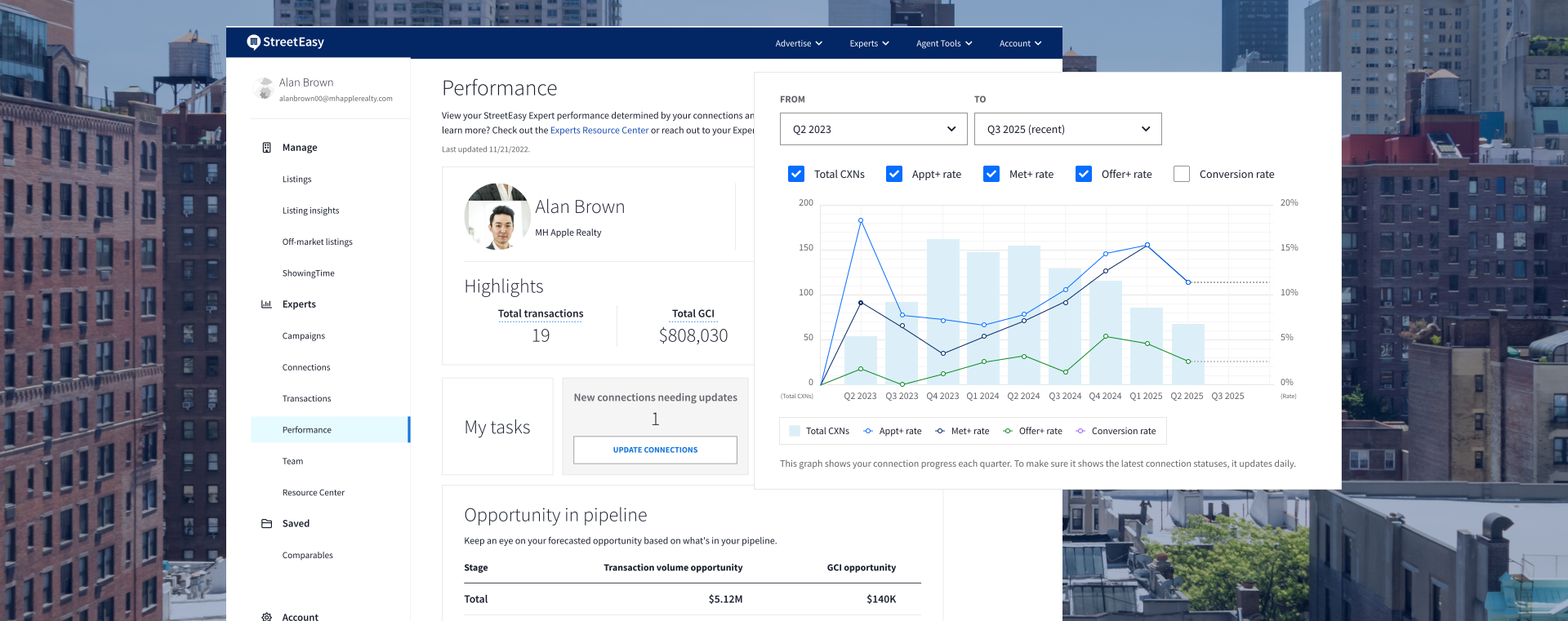
First, to navigate to your dashboard, log in to your StreetEasy account and go to Experts > Performance.
Your Experts Performance Dashboard contains information and data on your connections, transactions, opportunities, and rankings within the program. Your dashboard may look different depending on your status as an individual contributor, Team Lead, or Team Member.
Highlights
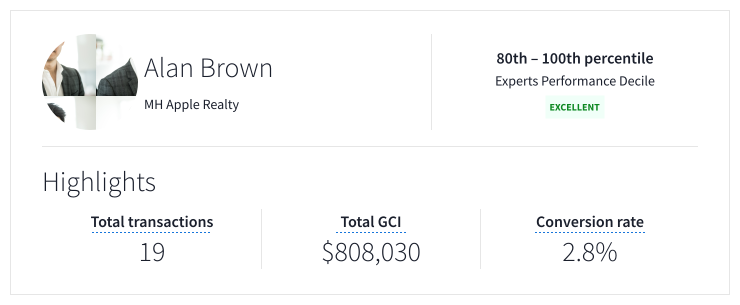
Here you’ll see an overview of key metrics: your total Experts transactions, total gross commission income (GCI), and conversion rate. You’ll also see your Experts Performance Decile — your percentile ranking within the Experts program — broken down as follows:
- 80th – 100th percentile: Excellent
- 60th – 80th percentile
- 40th – 60th percentile
- 20th – 40th percentile
- 0 – 20th percentile: At Risk
My Tasks
This section is designed to help you keep your connections and transactions up-to-date. You’ll immediately see how many are in need of updates.
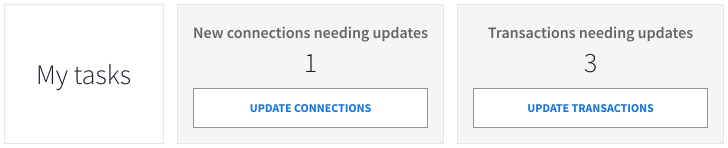
Use the buttons to go to either your Connections or Transactions page and make the necessary updates.
It’s important to update the status of your connections and report all transactions. It allows you to track where your connections are in their buying or selling journey, and to report your progress to StreetEasy. This is also how StreetEasy evaluates your performance within the Experts program and connects you with potential clients whose needs match your experience. Your completed transactions are also reflected on your Expert profile.
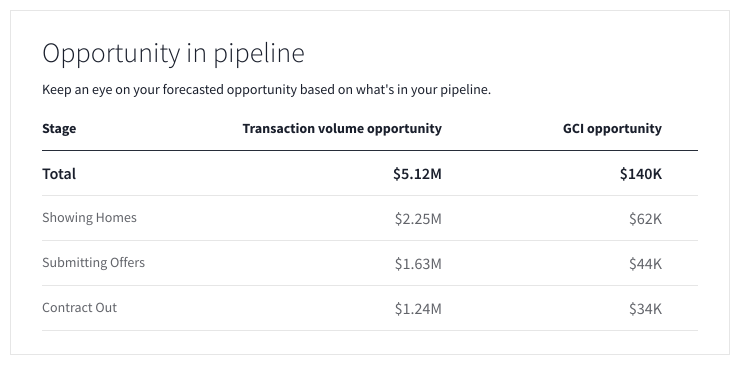
Opportunity in Pipeline
What’s in your pipeline? Find out in this section, which shows your forecasted opportunities based on the statuses of your connections. You’ll see potential dollar amounts for your transaction volume and GCI opportunities — a great motivator to work your Connections and close more deals.
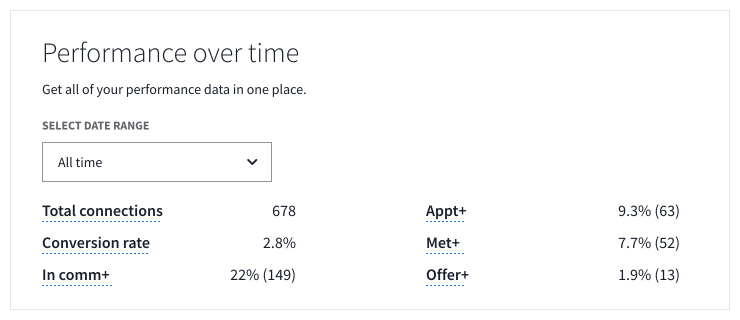
Performance Over Time
It’s the section you’ve been waiting for, where you can access all of your performance data in one place. At the top, select a date range and see your total connections and conversion rate during that time period. You’ll also see numbers and shares of connections that reached at least a status of In Communication (In comm+), Appointment Set (Appt+), Showing Homes (Met+), and Submitting Offers (Offer+).
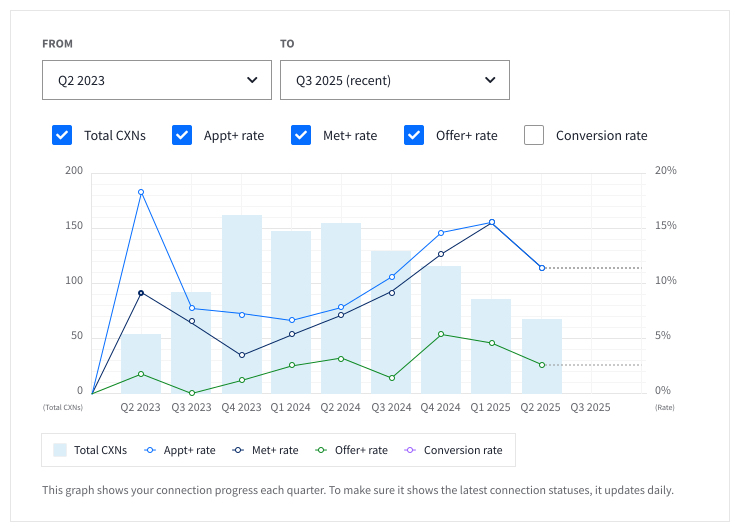
Next, an interactive graph depicts your performance over time on a quarterly basis. Choose a starting and ending quarter and the metrics you’d like the graph to display for that period. Use the graph to visualize your progress, make informed decisions, and define areas of focus based on real-time data.
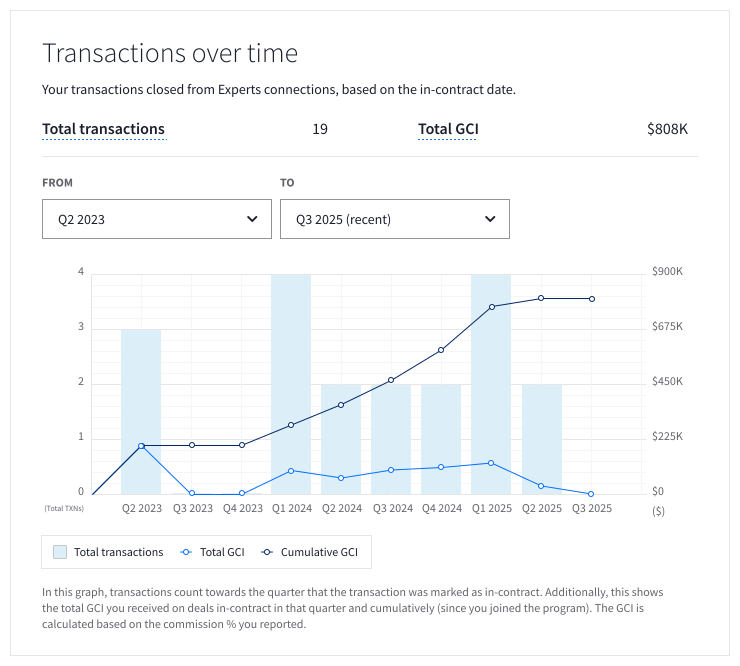
Transactions Over Time
In this section, begin by selecting a starting and ending quarter. Based on deals that went into contract during that period, you’ll see your total number of transactions closed from Experts connections and your total GCI from Experts deals. The graph will also display this data for the selected time period, in addition to your cumulative GCI since you joined the Experts program.
Team Performance
If you’re a Team Lead within the program, your dashboard will include this section with your team’s performance metrics. Select a date range and click on a column label to sort by that metric, ascending or descending.
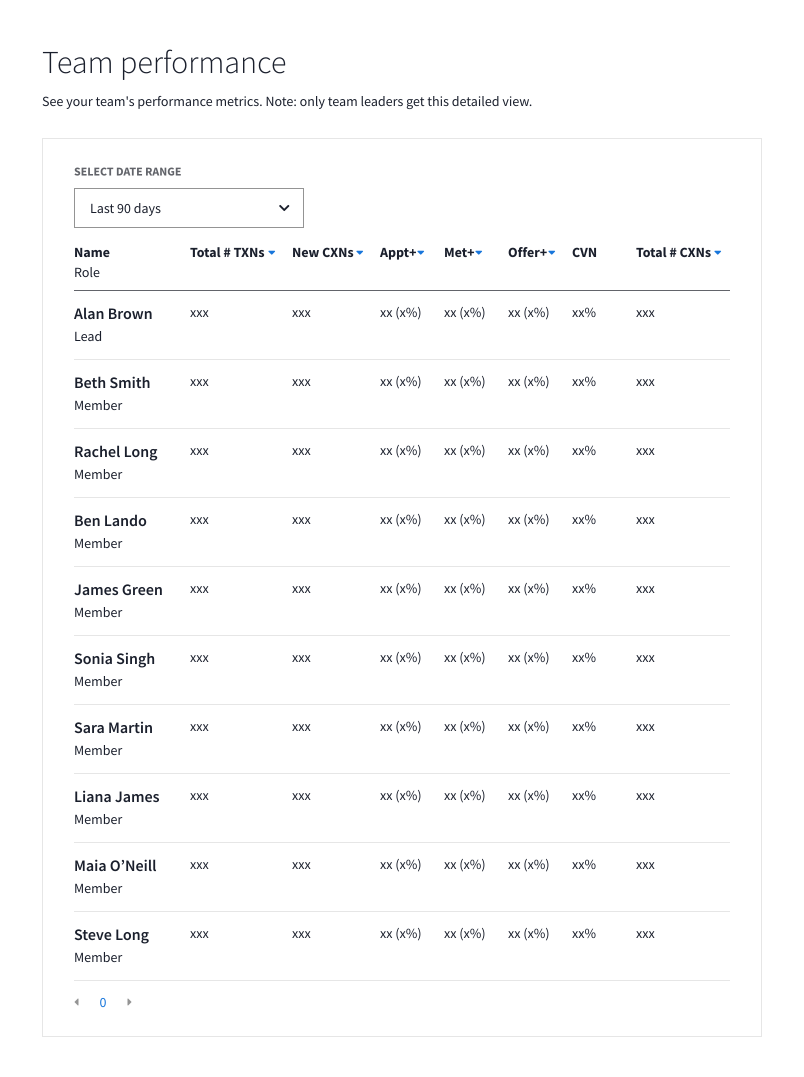
Use this data to track the performance of your team as a whole, how each team member is doing, and where there is room for improvement.
Team Ranking
If you’re a member of a team within the Experts program (but not a Team Lead), you’ll see this section in your dashboard. For your selected date range, you’ll see where you rank among your team for number of transactions and transaction volume.
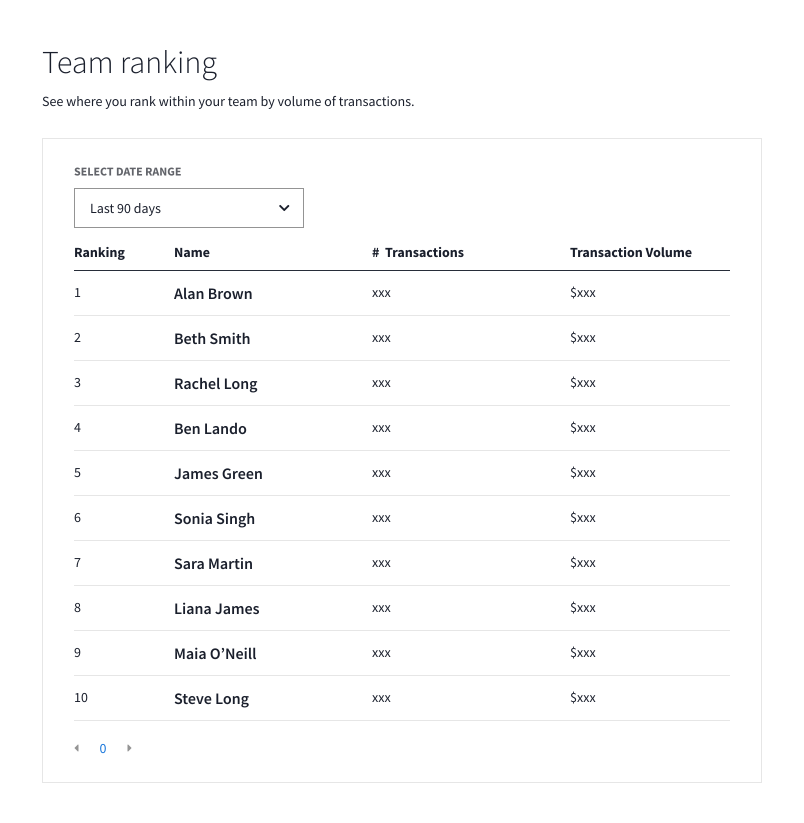
This data allows you to contextualize your performance and see how it compares to that of your Experts teammates, helping you set individual and team goals.
For additional questions or information on using the Experts Performance Dashboard, contact your Business Advisor or email experts@streeteasy.com. Keep checking the Experts Resource Center blog for further updates on this feature and other Experts tools.